This guide details how to navigate the support portal, manage support requests, track organizational tickets, and navigate the estimated approval process.
Table of content
1. Accessing the support portal & logging in
2. Navigating the home page & submitting a ticket
How to Submit a Request:
Ticket notifications & portal synchronization
2.1 Ticket received email
2.2 Ticket resolved email
2.3 Ticket closed email
3. Tracking team progress: individual vs. company tickets
4. Ticket lifecycle & portal status definitions
5. Budget & estimate approval process
1. Accessing the support portal & logging in
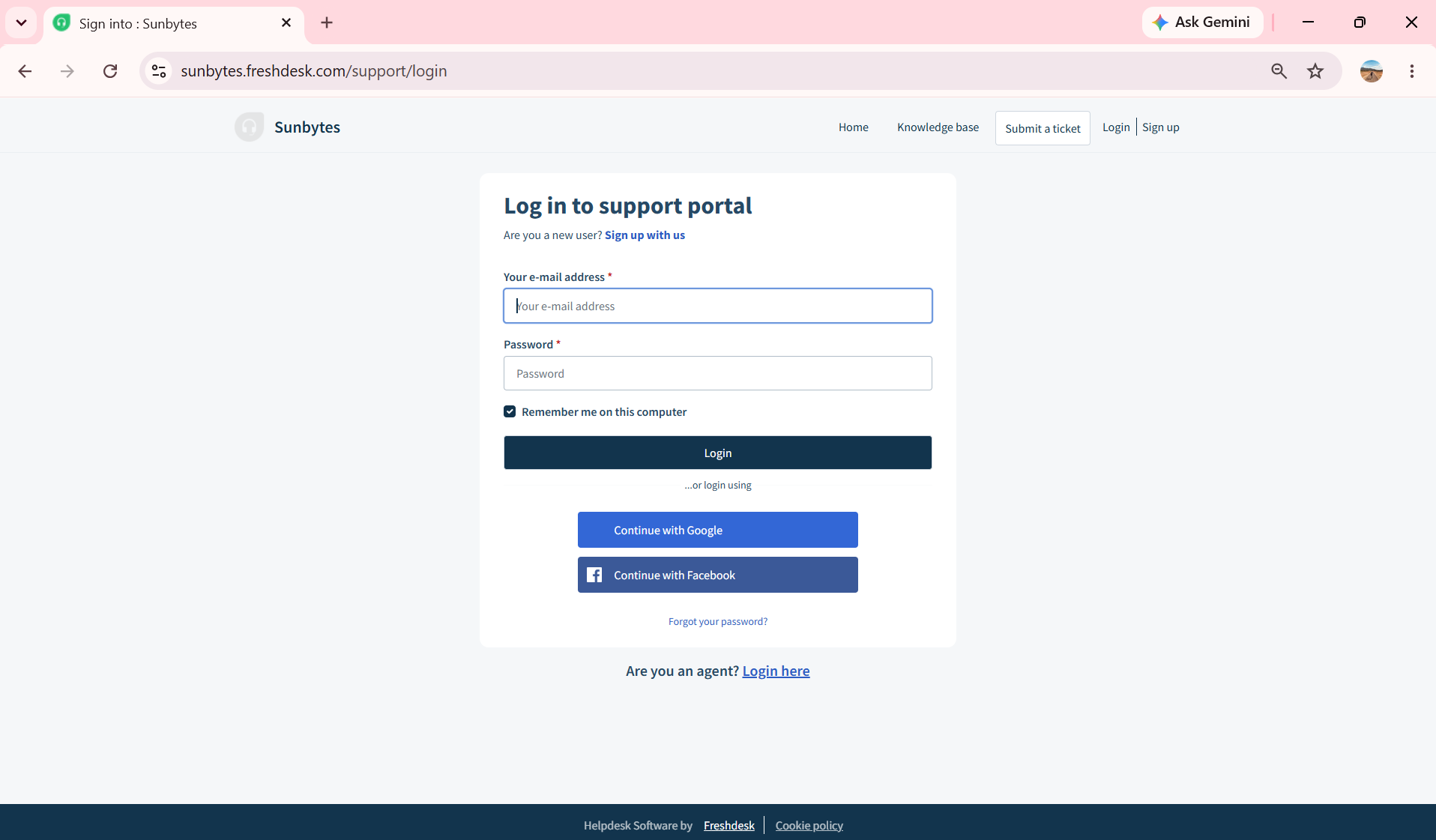
To access the portal, navigate to the provided support URL:
From the login screen, enter your registered email address and password, or use the integrated single sign-on (SSO) options (such as Google or Facebook). New users must click "Sign up with us" to create a profile.
To manage your profile settings, change your password, or log out, click the User Profile Icon (indicated by the initial circle icon) in the top-right corner of the navigation bar.
2. Navigating the home page & submitting a ticket
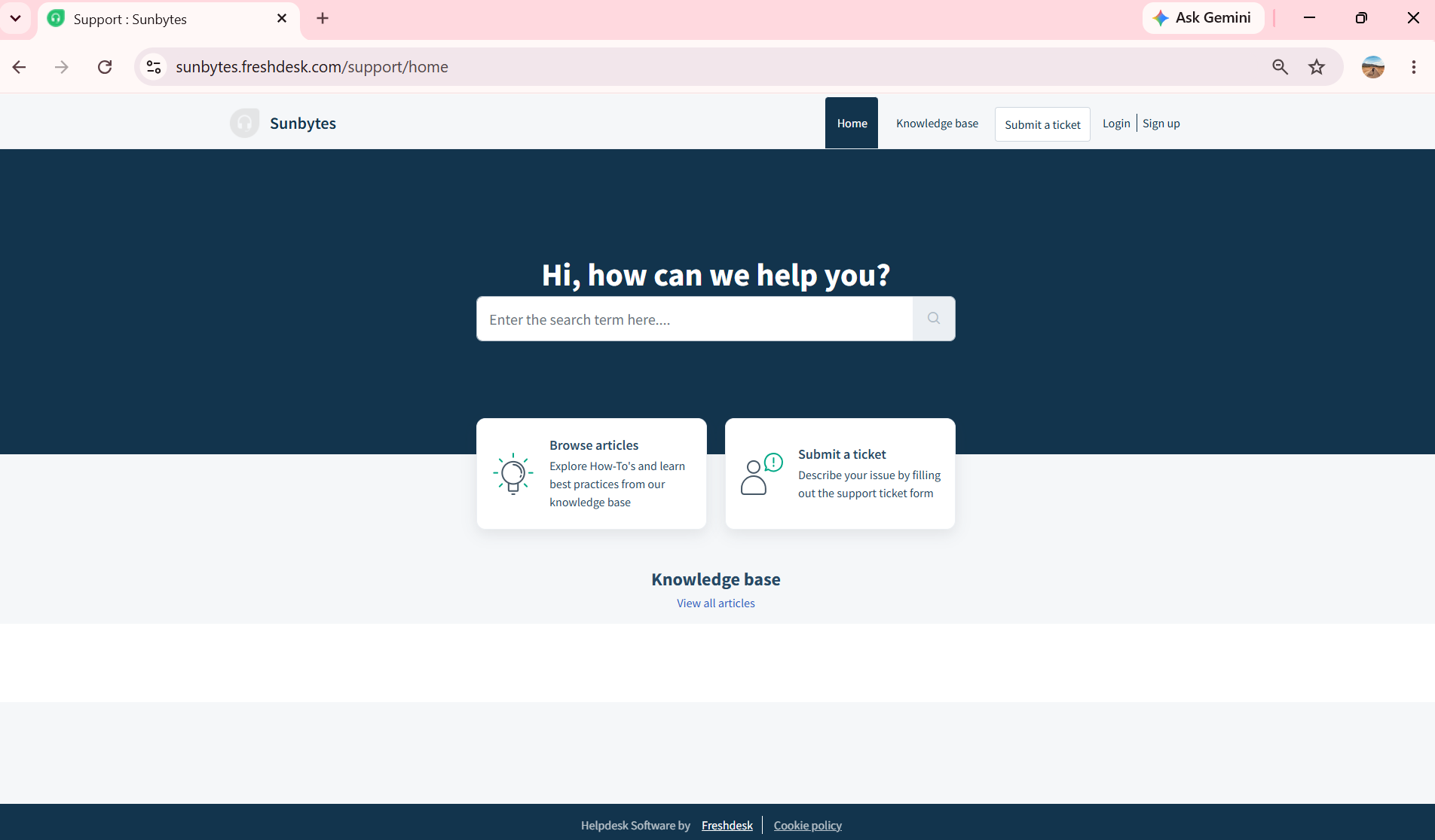
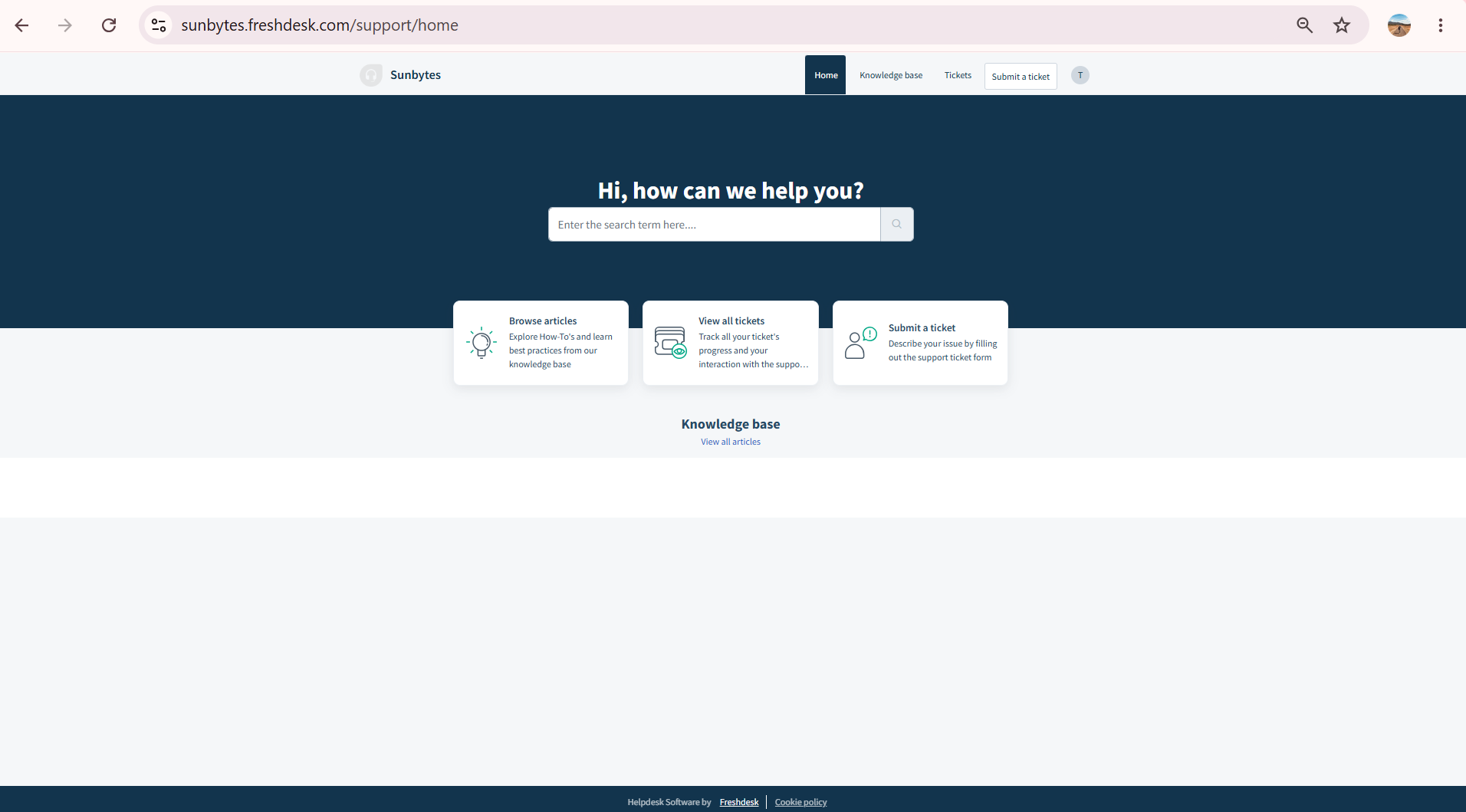
The portal home page provides multiple primary paths for assistance:
Browse Articles: Access the Knowledge Base to search for self-service documentation and workflows.
View All Tickets: Access a comprehensive dashboard of all relevant support requests.
Submit a Ticket: Open a structured request directly to the support team
How to Submit a Request:
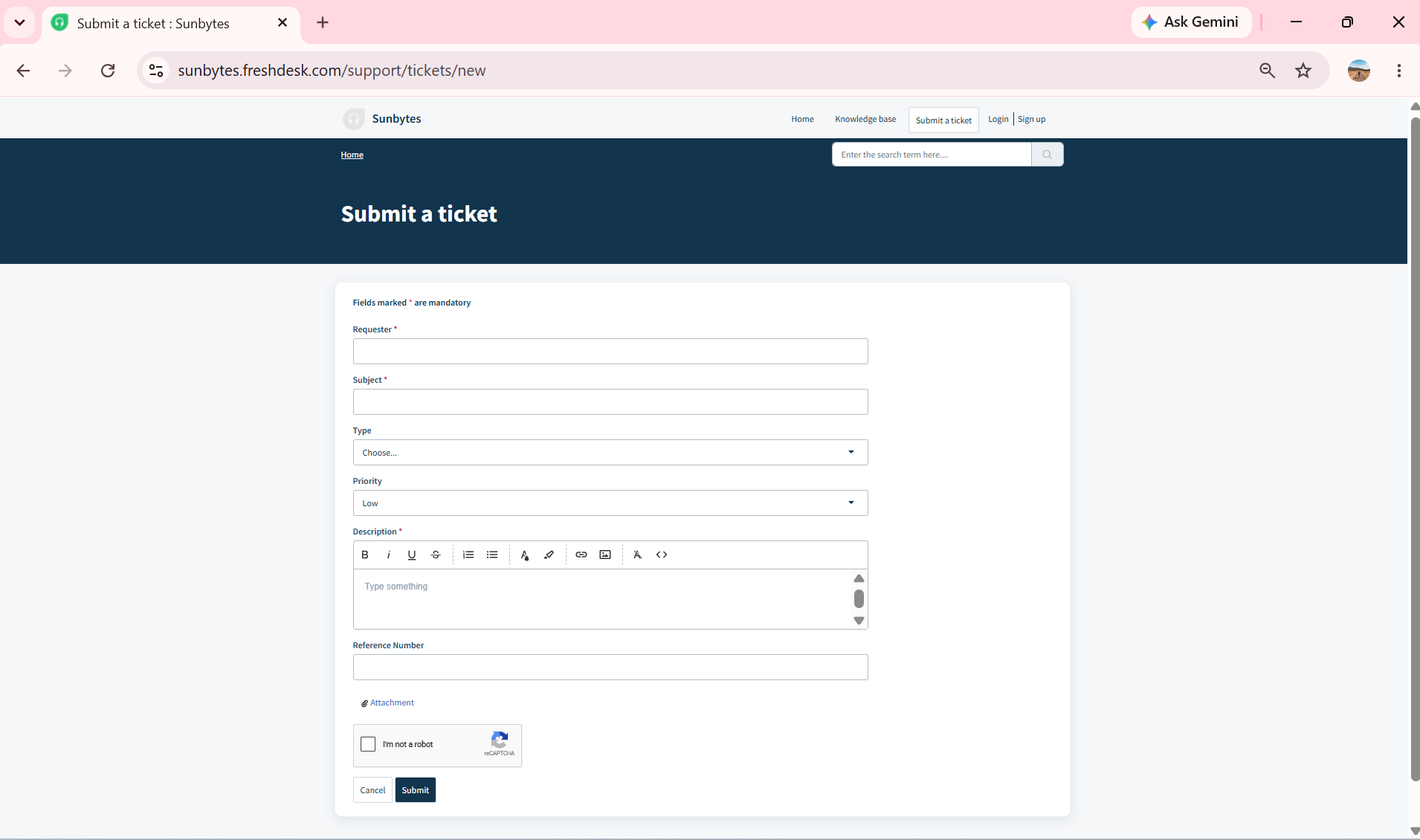
Clicking "Submit a ticket" opens a standardized intake form:
Requester: The pre-filled email address of the user creating the ticket.
Subject: A concise summary of the issue or request.
Type & Priority: Dropdown menus to classify the request type and urgency level (Low, Medium, High, Urgent).
Urgent
Scope: Critical system downtime or complete failure of core functionality.
Impact: Prevents regular business operations entirely; requires immediate, all-hands resolution.
High Priority
Scope: Significant feature failures or major operational impairments where core business can proceed only with heavy workarounds.
Impact: High impact on operations or user experience, requiring prioritized resolution ahead of standard tasks.
Medium Priority
Scope: Minor bug fixes, standard configuration questions, and routine dependency updates.
Impact: Non-blocking issues where primary systems remain functional, but resolution is needed for optimal operations.
Low Priority
Scope: General support queries, non-critical enhancements, cosmetic tweaks, and routine maintenance.
Impact: Lowest impact on daily workflow; addressed during scheduled maintenance windows or downtime.
Description: The text field for the details of the request. The rich-text editor allows for code formatting, bulleted lists, and file attachments.
Reference Number: An optional field for internal tracking codes or project identifiers.
Ticket notifications & portal synchronization
After you submit a ticket, you will receive an automatic email acknowledgment. Following this initial submission, every subsequent status change will trigger an automated email notification to keep you updated on our progress. Alternatively, you can log into the support portal at any time to check the live status of your requests, as the portal and email systems are fully synchronized in real time.
2.1 Ticket received email
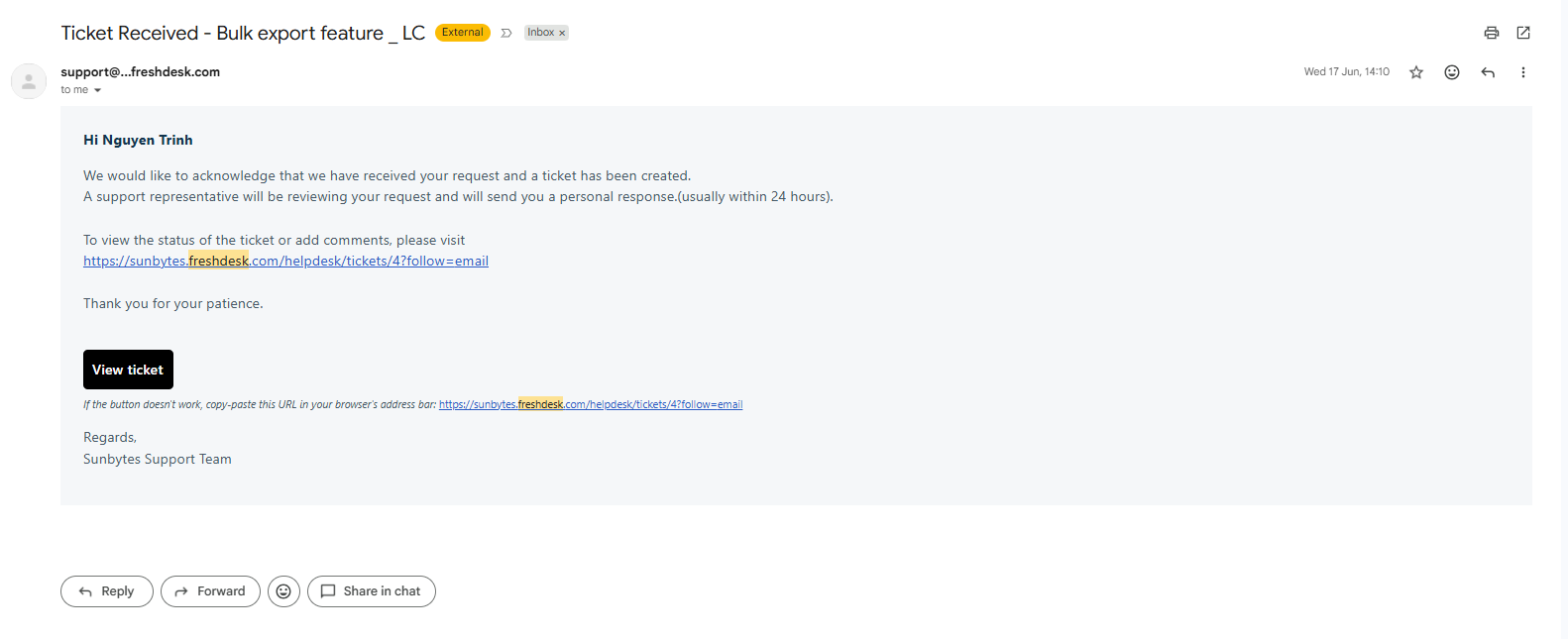
As soon as your request enters our system, you will receive an automated confirmation email containing your ticket details and a direct link to view the ticket thread in the portal. This indicates that your issue has safely entered the Sunbytes queue and is awaiting triage.
2.2 Ticket resolved email
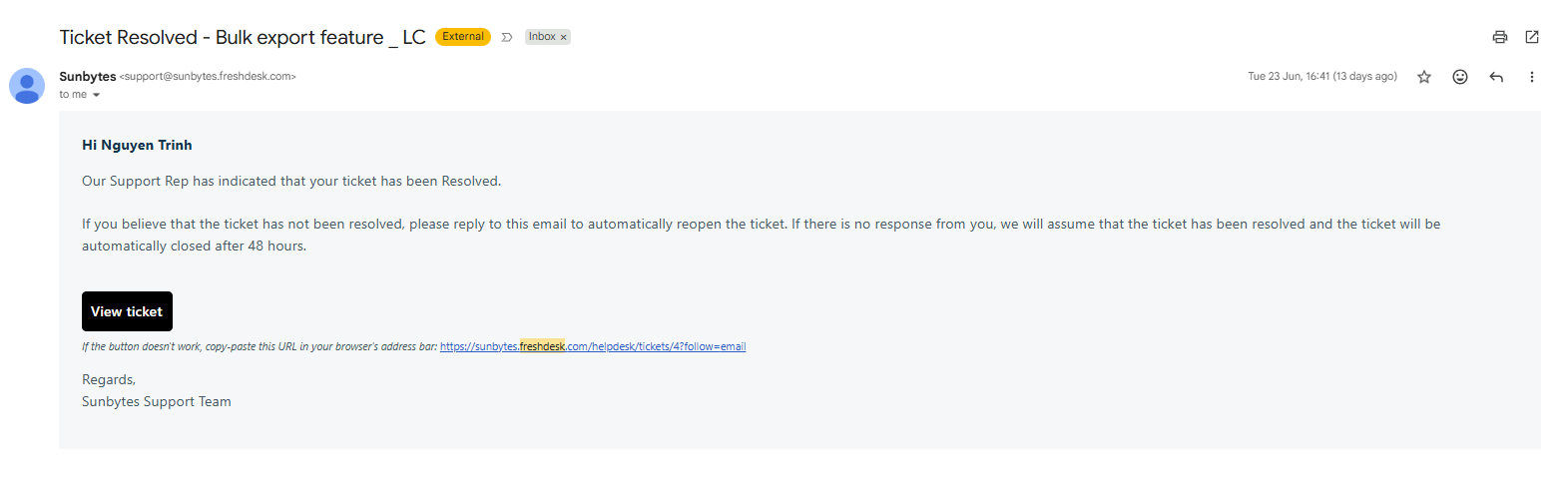
When the Sunbytes team deploys a fix or completes the requested work, the ticket status changes to "Resolved," and a resolution notification email is dispatched. This email outlines the solution and begins a testing window. If you find the issue persists, simply reply directly to this email to reopen the ticket.
2.3 Ticket closed email
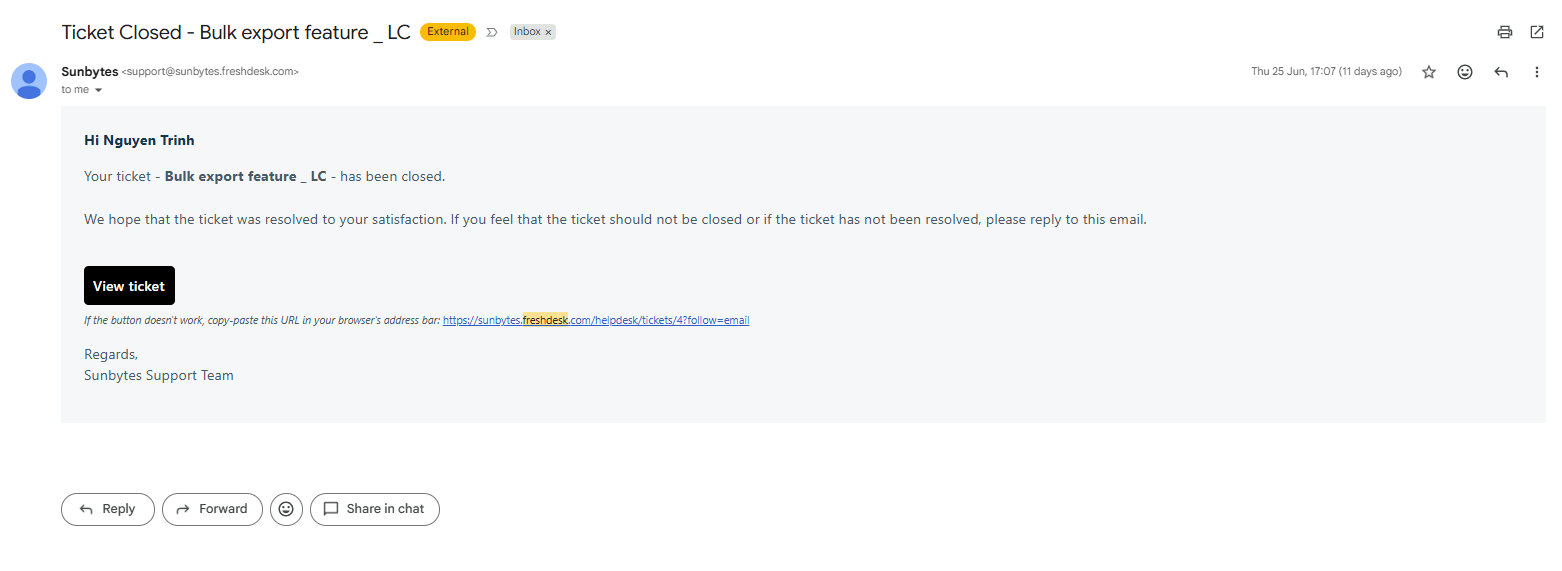
When a client closes a ticket via the portal, it indicates the issue has been successfully addressed and no further feedback is required.
3. Tracking team progress: individual vs. company tickets
Users are linked to their respective organization profile within the portal. This configuration allows visibility across the organization's entire ticket queue.
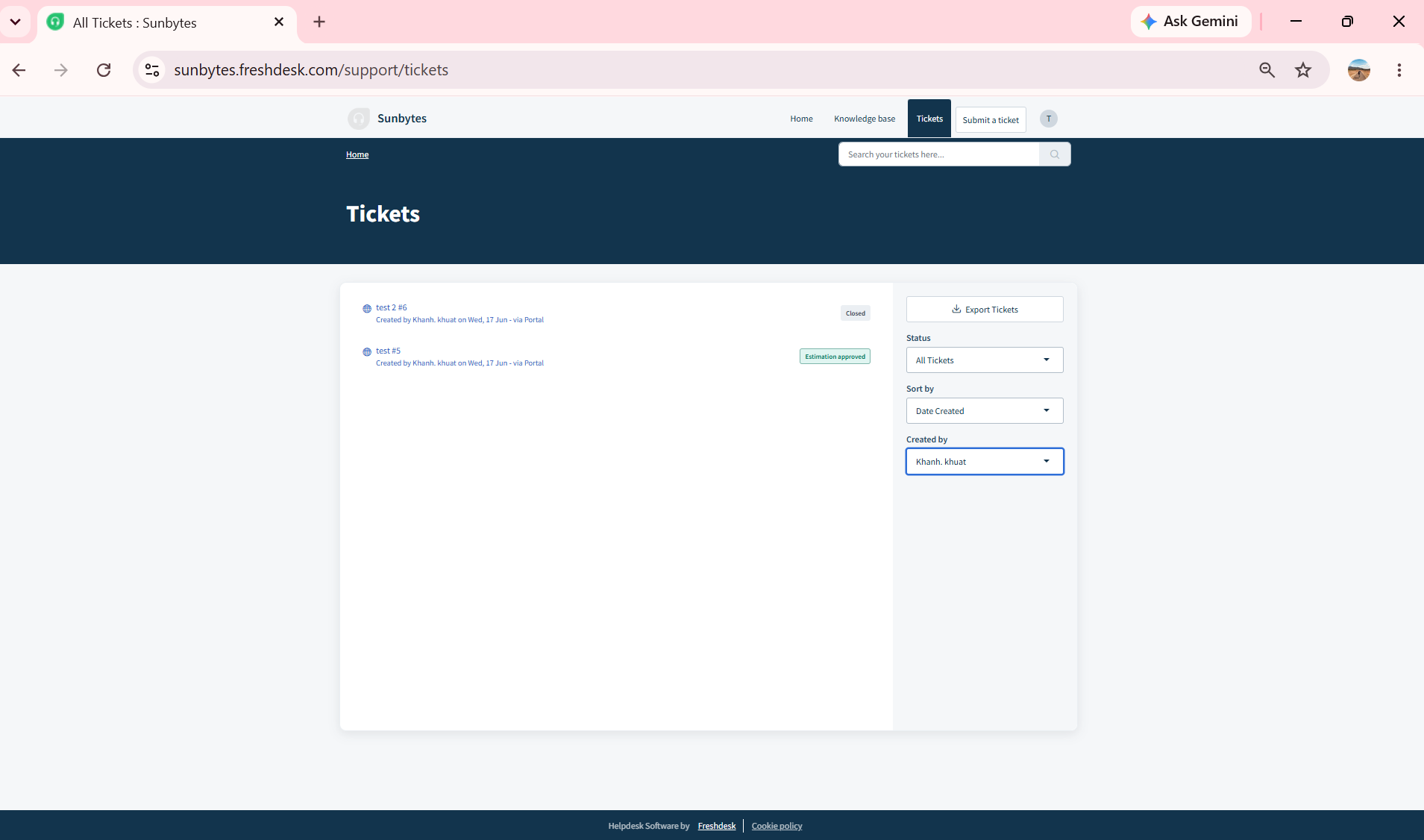
When viewing the "Tickets" tab in the main navigation menu or clicking “View all tickets” on the home page, users can filter views using the right-hand panel:
Myself: Filters the dashboard to display only the requests created by the logged-in user.
Other person: Choose any member of the organization, page displays all tickets, active statuses, and full conversation histories logged by them.
To switch between these views, use the "Created by" dropdown menu in the right-hand filtering panel. This panel also allows filtering by ticket status (e.g., All Tickets, Open or Pending, Resolved or Closed) and creation date.
4. Ticket lifecycle & portal status definitions
To ensure operational alignment, tickets progress through a standardized lifecycle defined by specific portal statuses. The list below outlines what you will see as the Label for client:
Open: The ticket has been successfully received, and a system acknowledgment email is sent. The issue is in the queue awaiting engineering triage or active work by the Sunbytes team.
Pending: The Sunbytes team has responded with a request for information, testing feedback, or clarification. Active work is paused until the client replies. The SLA timer is paused.
Resolved: The Sunbytes team has completed the work or deployed the fix, triggering a resolution notification email. The SLA timer is paused.
Closed: The final state of a ticket, accompanied by a final closure email. Closed tickets cannot be altered; any new or related issues require a new ticket.
Awaiting your Reply: The ticket is pending feedback, configuration settings, or operational confirmation from your team. The SLA timer is paused while the Sunbytes team waits for your input.
Waiting on Third Party: The Sunbytes team has escalated or transferred the dependency to an external vendor, integration service, or infrastructure provider. The issue is actively monitored while awaiting a technical dependency fix. The SLA timer is paused while the Sunbytes team waits for the Third Party.
Estimation Approved: A specialized status indicating that an authorized organizational approver has formally signed off on a quoted budget or effort estimate. This signals the Sunbytes technical team to proceed with execution.
Solution Approved: The proposed fix, technical roadmap, or design asset has been reviewed and verified by your team's designated stakeholders, giving the engineering team permission to execute the solution or deploy the changes to production.
5. Budget & estimate approval process
When a ticket requires a formal estimate or commercial sign-off before work can begin, the system triggers the standard approval workflow.
The Step-by-Step Approval Workflow:
Submission: A team member submits a support ticket that requires scoping.
Scoping & Notification: The Sunbytes team reviews the requirements, adds the formal effort or cost estimate to the ticket, and replies. The designated organizational approvers are automatically copied (CC'ed) on this notification.
Review & Decision: Designated approvers can review and authorize the estimate using one of two methods:
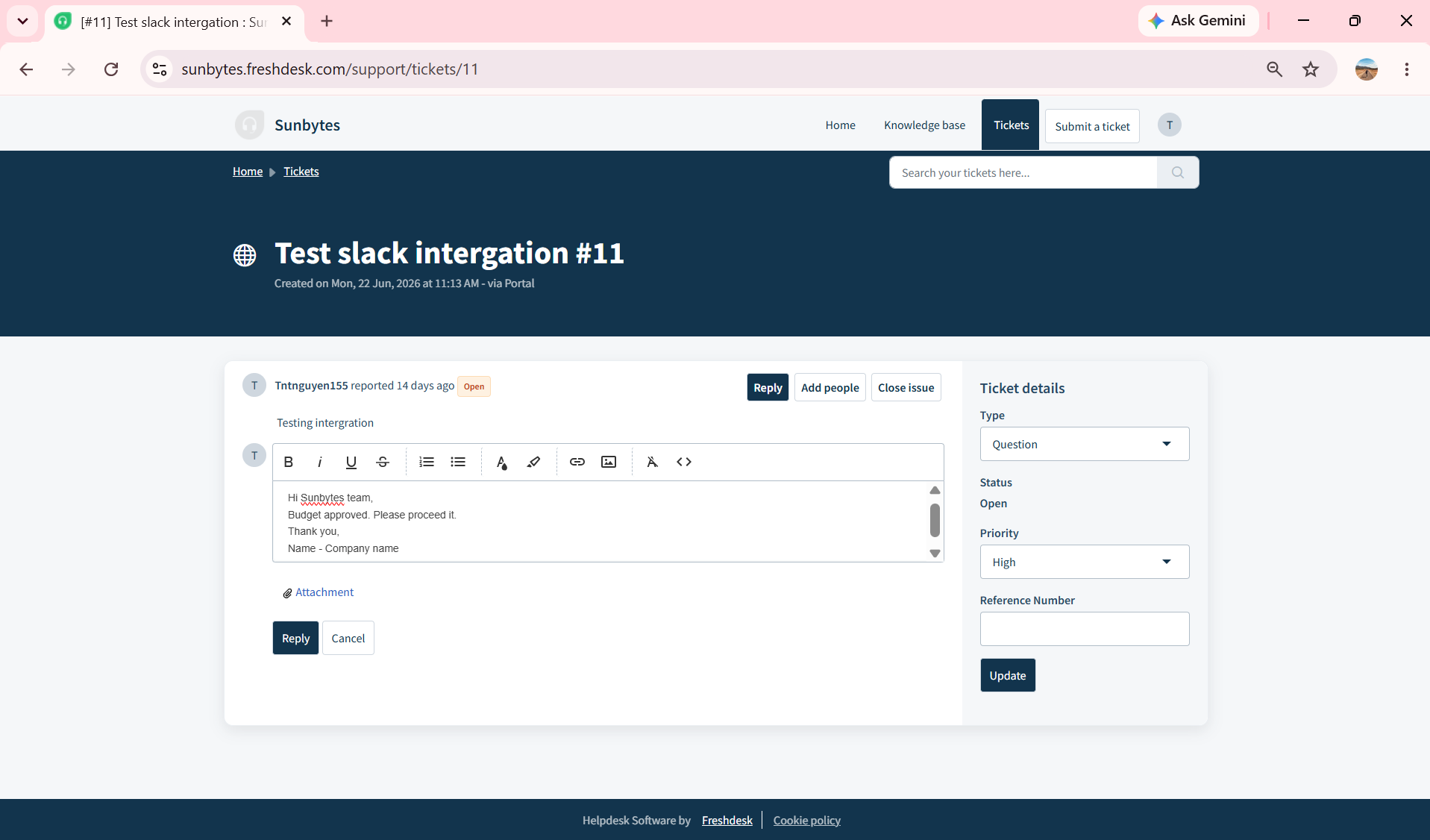
Option A (Portal Approval): Log into the portal, navigate to the ticket via the "Others Tickets" view, and post an approval reply directly on the ticket thread.
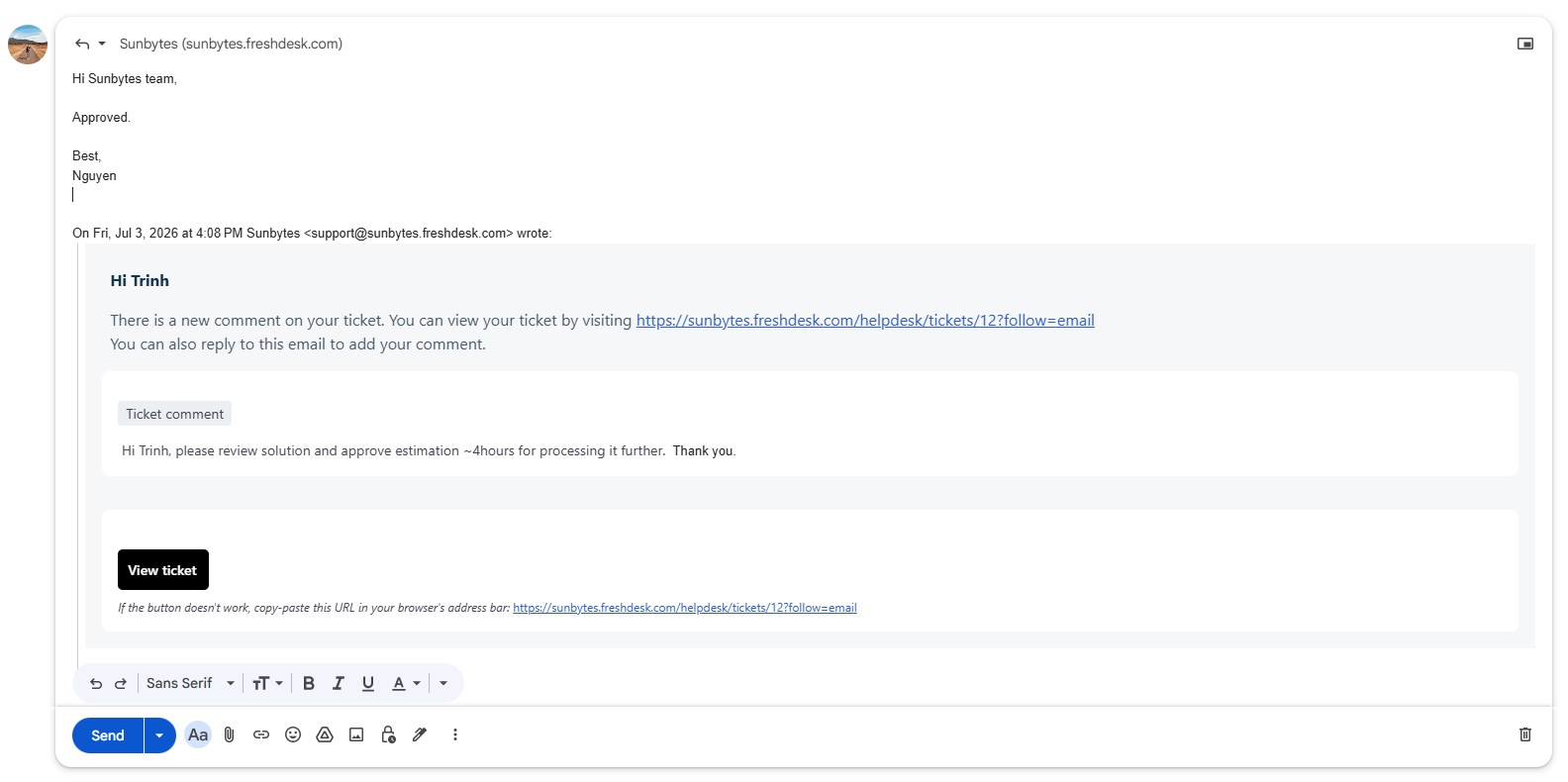
Option B (Email Approval): Reply directly to the automated email notification from an inbox. The portal parses the email reply and updates the ticket thread automatically.
Execution: Once the approval reply is processed, the ticket status changes to "Estimation Approved", signaling the Sunbytes team to proceed with execution.
Was this article helpful?
That’s Great!
Thank you for your feedback
Sorry! We couldn't be helpful
Thank you for your feedback
Feedback sent
We appreciate your effort and will try to fix the article